





🎬 Automated video transcoding service with GUI for Windows - Schedule bulk video conversions with HandBrake and extract subtitles with FFmpeg, all running as a background Windows service.
</br>

Overview
Video Transcoder Utility is a Windows application that automatically transcodes video files on a schedule. It monitors specified directories, transcodes videos using HandBrake, and optionally extracts subtitles using FFmpeg - all while running silently in the background as a Windows service.
Key Features:
- Scheduled Processing 🕐 - Define time windows and specific days for transcoding
- Folder Monitoring 📁 - Automatically processes videos in monitored directories
- Smart History 🎯 - Never transcodes the same file twice
- Subtitle Extraction 📝 - Extract and convert subtitles to SRT format
- Missing Subtitle Download 📥 - Download missing subtitles by video hash
- Real-time Progress 📊 - Track transcoding progress with detailed statistics
- Flexible Configuration 🔧 - Custom HandBrake parameters for any workflow
- Automatic Logging 💾 - Comprehensive logs with automatic rotation
Screenshots
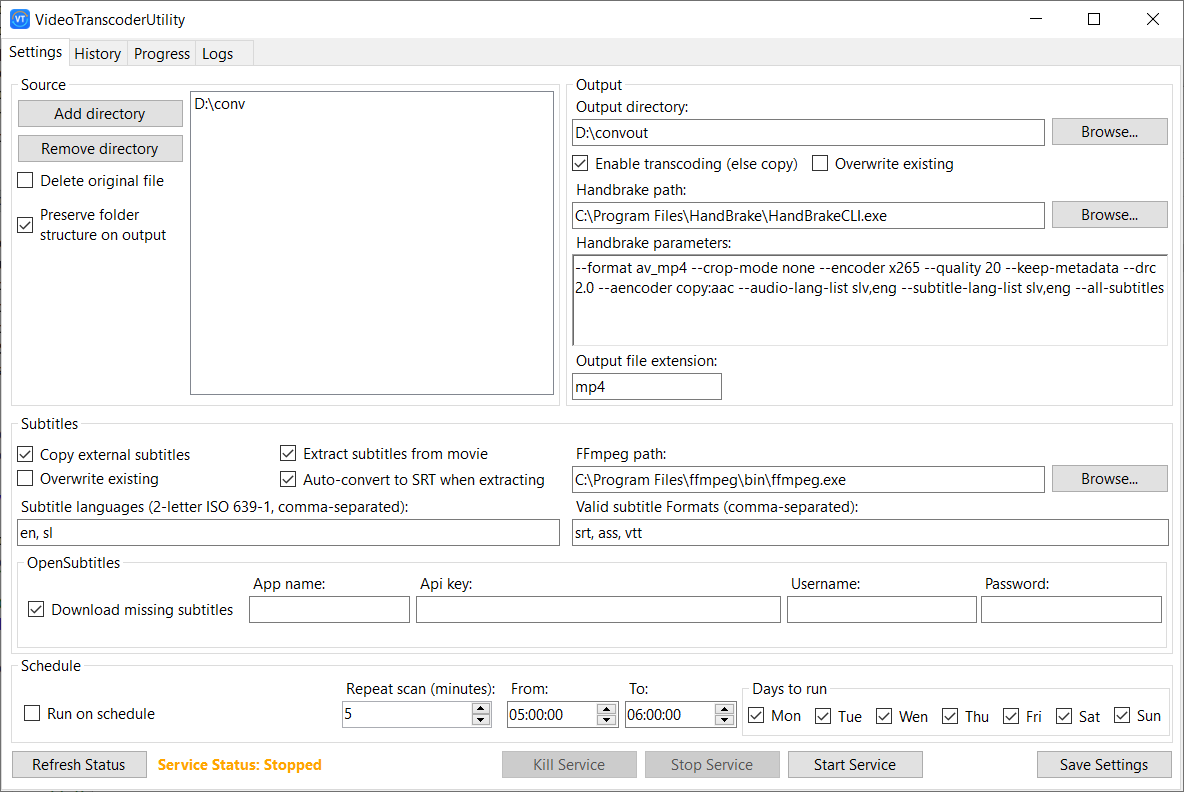
Settings Configuration
Configure directories, settings, HandBrake parameters, and scheduling:
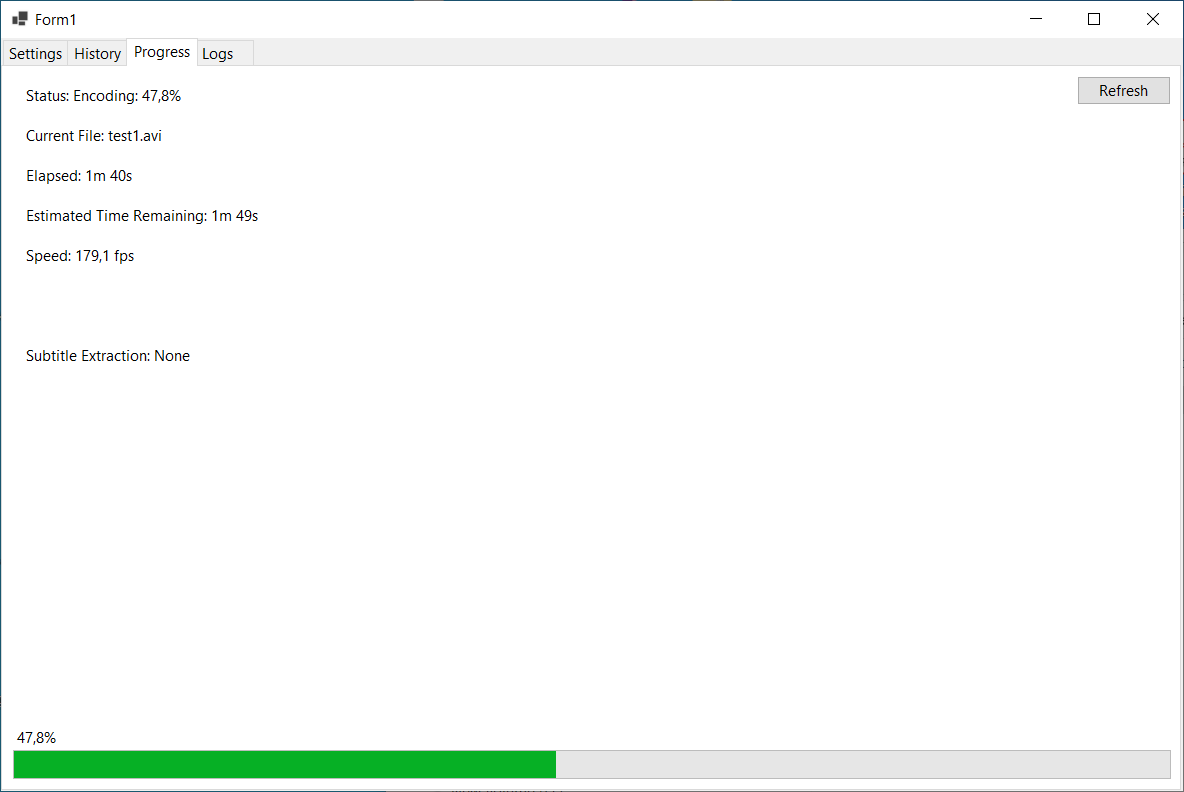
Real-time Progress Tracking
Monitor transcoding progress with live updates:
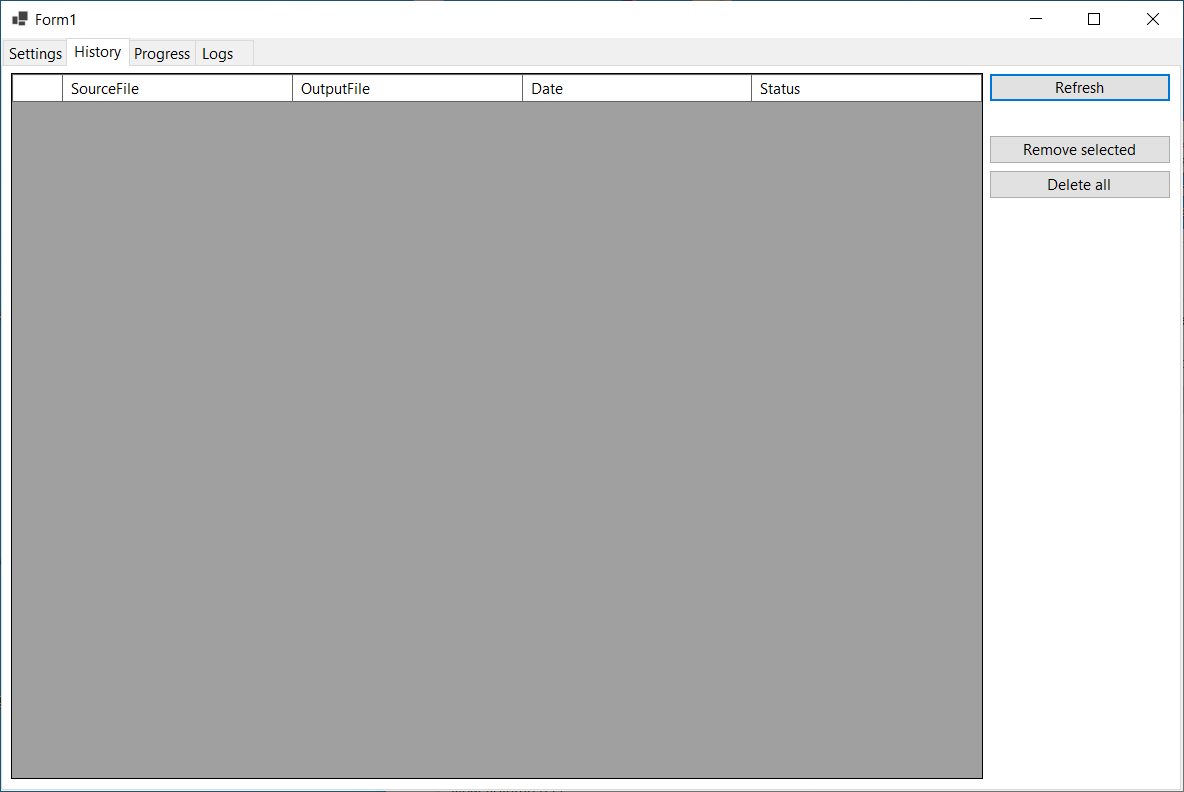
History Management
View and manage transcoded files:
Service Logs
Browse detailed logs from HandBrake and FFmpeg:

Installation
Prerequisites
- Windows 10/11 (64-bit)
- .NET 10.0 Runtime or later
- HandBrake CLI - Download
- FFmpeg (optional, for subtitle extraction) - Download
Installation Steps
-
Download the latest installer from Releases
-
Run
VideoTranscoderSetup.exeas Administrator -
Follow the installation wizard - it will:
- Install the GUI application
- Install and start the Windows service
- Create necessary directories
-
Launch Video Transcoder from Start Menu
-
Configure settings:
- Add directories to monitor
- Set output directory
- Configure HandBrake and FFmpeg paths
- Set your transcoding schedule
Manual Installation (Advanced)
# Clone repository
git clone https://github.com/anzeumek/VideoTranscoderUtility.git
cd VideoTranscoderUtility

# Open in Visual Studio 2026+
# Build solution in Release mode
# Install service manually:
sc create VideoTranscoderService binPath="C:\Path\To\VideoTranscoder.Service.exe" start=auto
sc start VideoTranscoderService
Usage
Quick Start
-
Add Monitored Directories
- Open the Settings tab
- Click “Add Directory”
- Select folders containing videos to transcode
-
Configure Output
- Set output directory where transcoded files will be saved
- Original folder structure is preserved
-
Set HandBrake Parameters
- Use any HandBrake CLI parameters you need
- Example:
--encoder x265 --quality 22 --all-audio --all-subtitles
-
Configure Schedule
- Set start and end times (e.g., 10 PM to 6 AM)
- Select which days to run
- Service only transcodes during scheduled windows
-
Save Settings and let the service work!
Scheduling Examples
Weeknight Processing:
- Days: Mon, Tue, Wed, Thu, Fri
- Time: 10:00 PM - 6:00 AM
- Use Case: Process videos while you sleep on work nights
Weekend Only:
- Days: Sat, Sun
- Time: 12:00 AM - 11:59 PM
- Use Case: All-day processing on weekends
Custom Schedule:
- Days: Tue, Thu, Sat
- Time: 2:00 AM - 5:00 AM
- Use Case: Specific nights with lighter workloads
HandBrake Parameter Examples
# High quality H.265 encode
--encoder x265 --quality 22 --all-audio --all-subtitles

# Fast 1080p encode
--preset "Very Fast 1080p30" --encoder x264

# Preserve quality with specific codec
--encoder x265 --vb 2500 --audio-copy-mask aac,ac3

# Mobile-optimized output
--preset "Android 1080p30" --optimize
Features in Detail
Automatic Subtitle Extraction
- Extracts all subtitle tracks from video files
- Automatically converts some included non-SRT subtitles to SRT format
- Subtitles saved in organized
subs/folders
Copy External Subtitles
- Copies selected subtitle files that are in the same folder as video files
- Copies selected subtitle files that are in “subs” or “subtitles” folder next to video files
Download Missing Subtitles
- Searches for missing subtitles by video hash and tries to download them using OpenSubtitles rest api
- Use your own account and api key from https://www.opensubtitles.com/
Smart History Tracking
- Remembers all transcoded files
- Prevents duplicate transcoding
- View complete history in GUI
- Remove entries to re-transcode files
Real-time Progress Monitoring
- Live percentage and FPS display
- Estimated time remaining
- Current file being processed
- Subtitle extraction progress
Service Control
- Start/Stop service from GUI
- Stop current operation without stopping service
- View service status in real-time
- Automatic restart on system reboot
Comprehensive Logging
- All HandBrake output logged
- All FFmpeg operations logged
- Automatic log rotation at 10MB
- Keeps last 5 log files
- Browse logs directly in GUI
Folder Structure Preservation
Input:
D:\Videos\
└── Movies\
    └── Action\
        └── Movie.mkv
Output:
E:\Transcoded\
└── Videos\
    └── Movies\
        └── Action\
            ├── Movie.mkv
            └── subs\
                ├── Movie.eng.srt
                └── Movie.spa.srt
Configuration
All settings are stored in:
C:\ProgramData\VideoTranscoder\
├── settings.json        # Application settings
├── history.json         # Transcoding history
├── progress.json        # Current progress
├── service.log          # Current log
└── service_*.log        # Archived logs
Settings File Example
{
  "MonitoredDirectories": [
    "D:\\Videos\\Movies",
    "D:\\Videos\\TV Shows"
  ],
  "OutputDirectory": "E:\\Transcoded",
  "HandBrakePath": "C:\\Program Files\\HandBrake\\HandBrakeCLI.exe",
  "FFmpegPath": "C:\\Program Files\\ffmpeg\\bin\\ffmpeg.exe",
  "HandBrakeParameters": "--encoder x265 --quality 22",
  "RunOnSchedule": true,
  "ScheduleStartTime": "22:00:00",
  "ScheduleEndTime": "06:00:00",
  "RunOnMonday": true,
  "RunOnTuesday": true,
  "ExtractSubtitles": true,
  "SubtitleFormats": "srt, ass, vtt",
  "ConvertToSrtIfMissing": true,
  "DeleteOriginalAfterTranscode": false
}
Architecture
The project consists of three main components:
VideoTranscoder/
├── VideoTranscoder.Shared/      # Shared models and utilities
│   ├── TranscoderSettings.cs    # Configuration model
│   ├── TranscodeHistory.cs      # History tracking
│   ├── TranscodeProgress.cs     # Progress reporting
│   └── ServiceControl.cs        # Service communication
├── VideoTranscoder.Service/     # Windows Service
│   ├── Worker.cs                # Main processing logic
│   └── Program.cs               # Service entry point
└── VideoTranscoder.GUI/         # Windows Forms GUI
    └── Form1.cs                 # Main interface
How It Works
- Service monitors for scheduled time windows
- Scans directories for video files
- Checks history to skip already-transcoded files
- Extracts/copies/downloads subtitles (if enabled) using FFmpeg and OpenSubtitles
- Transcodes video using HandBrake with custom parameters
- Updates history and progress files
- Logs everything for debugging and monitoring
Communication
The service and GUI communicate through shared JSON files:
- Settings are reloaded by the service every scan
- Progress is written by service, read by GUI every 2 seconds
- No network communication required (except for subtitle download)
Building from Source
Requirements
- Visual Studio 2026 or later
- .NET 10.0 SDK
- Windows 10/11
Build Steps
# Clone repository
git clone https://github.com/anzeumek/VideoTranscoderUtility.git
cd VideoTranscoderUtility

# Open solution
start VideoTranscoderUtility.slnx

# In Visual Studio:
# 1. Set build configuration to "Release"
# 2. Build → Rebuild Solution
# 3. Output will be in:
#    - VideoTranscoder.GUI\bin\Release\net10.0\
#    - VideoTranscoder.Service\bin\Release\net10.0\
Creating Installer
- Install Inno Setup
- Open
VideoTranscoderSetup.iss - Update paths if needed
- Build → Compile
- Installer will be in
Installer\VideoTranscoderSetup.exe
Troubleshooting
Service Won’t Start
- Run as Administrator
- Check Event Viewer for errors
- Verify .NET Runtime is installed
- Check service.log for details
HandBrake Not Working
- Verify HandBrake CLI is installed
- Check path in Settings tab
- Test HandBrakeCLI.exe from command line
- Ensure proper permissions
Subtitles Not Extracting
- Install FFmpeg
- Set correct FFmpeg path in Settings
- Check that videos actually contain subtitles
- Review logs for FFmpeg errors
Progress Not Updating
- Ensure service is running
- Check that GUI has read access to
C:\ProgramData\VideoTranscoder\ - Verify timer is running (restart GUI)
High CPU Usage
The service runs HandBrake at “Below Normal” priority by default to minimize system impact during transcoding.
Performance Considerations
- CPU Usage: HandBrake is CPU-intensive; schedule during off-hours
- Disk Space: Ensure adequate space in output directory
- Network: Service works offline; no internet required
- Memory: ~200MB for service, ~50MB for GUI
Contributing
This is a hobby project and may not be actively maintained. However, contributions are still welcome. Please feel free to submit a Pull Request.
- Fork the repository
- Create your feature branch (
git checkout -b feature/AmazingFeature) - Commit your changes (
git commit -m 'Add some AmazingFeature') - Push to the branch (
git push origin feature/AmazingFeature) - Open a Pull Request
License
This project is licensed under the MIT License.
Acknowledgments
- HandBrake - Powerful video transcoding engine
- FFmpeg - Comprehensive multimedia framework
- Inno Setup - Installer creation tool
- OpenSubtitles - API for downloading subtitles
Disclaimer
This application depends on third-party software to function correctly. These tools are not bundled with this application. You must install them separately and ensure they are accessible via your system PATH or configured correctly for the application to detect them. This application provides just tools for downloading subtitles. Download from OpenSubtitles can be used only with your own account and api key.
Third-Party Software
All third-party tools are:
- Owned and maintained by their respective author
- Licensed under their own licenses
- Used by this application without modification
This project does not redistribute, replace, or relicense any of these tools.
Support
- Issues: GitHub Issues
- Discussions: GitHub Discussions
Built with ❤️ for video enthusiasts who want hands-off bulk transcoding